
You scan invoices, delivery bills or contracts every day with your Brother ADS-1700W, Canon CaptureOnTouch or Kyocera MFP. The scanning itself works perfectly. But then the time-consuming work begins: each file must be renamed, sorted into the correct folder structure and the data must be manually transferred to DATEV.
You may have heard of terms such as hotfolder, OCR Software or Automated document processing belongs. This guide shows you specifically how to move from your current scanner software to an intelligent, time-saving solution.
The initial situation: scanner drivers and their practical limitations
Most medium-sized businesses use the standard software supplied by the manufacturer. Brother desktop scanners typically use ControlCenter 4 or iPrint&Scan. Canon users are familiar with CaptureOnTouch Lite from their imageFORMULA scanners. Kyocera multifunction devices use TWAIN drivers or KM-NET Viewer. Fujitsu ScanSnap Manager, Epson Document Capture, HP Smart and Ricoh Smart Device Connector are also widely used solutions.
This manufacturer's software reliably fulfills its purpose during the actual scanning process. They create PDFs, save them in folders and send them by email. The limitation: These systems cannot understand the content of documents, extract information or make intelligent filing decisions.
The typical workflow in a tax consultancy or accounting department today looks like this: After scanning, someone has to open the PDF and check whether it is an invoice or a delivery bill. The supplier is then identified, the file is renamed according to an internal scheme and sorted into the correct subfolder. For invoices, DATEV is opened and all data is transferred manually. This process ties up considerable personnel capacity, which is not available for value-adding or advisory activities.
The path to automation: three tried-and-tested stages
Level 1: Structured digital filing with hot folders
The first automation step requires no additional investment. You use your existing scanner software and establish a systematic process - the basis for digital document management.
Configure a dedicated scan profile in Brother ControlCenter 4. The recommended destination folder is a central collection point such as C:\Dokumente\Scanner_Eingang\. The file format should be PDF, with automatic naming by date and timestamp. If your driver supports OCR, activate this function. For text documents, 300 dpi resolution is sufficient, the color mode should be set to black and white or grayscale.
Establish a clear folder structure for the Digital filing. An incoming scanner folder serves as a central collection point. Below this, you create a processed folder with subfolders for incoming invoices, delivery bills and contracts, each structured by year and month. A separate archive folder holds older years.
This structure provides your team with a defined process: all documents end up centrally in the inbox. Further sorting is carried out at set times by the responsible employees. You can find out more about the right structure in our article on digital archiving.
With this setup, you achieve a central collection point instead of scattered files on different computers, a structured and traceable workflow and searchable PDFs with activated OCR. However, the identification of the document type, naming by supplier, correct filing in subfolders and data entry for the accounting software are still done manually.
Stage 2: OCR software and rule-based sorting
With professional OCR Software improve the Text recognition and can implement initial automation rules.
ABBYY FineReader is one of the market leaders for OCR software. Before you decide on a commercial solution, it is worth taking a look at ABBYY FineReader Alternatives. The Professional version offers hot folder functionality with automatic monitoring of your scanner input folder, high quality text recognition even with mediocre scan quality and batch processing for large document volumes.
Setup is straightforward: you set up a hot folder that monitors your scanner input. You then define automatic actions such as performing OCR, optimizing and saving. The output is searchable PDFs in a defined processing folder.
One important limitation remains: ABBYY recognizes text precisely, but does not understand the meaning. It cannot automatically distinguish whether a document is an invoice, a delivery bill or a contract. This categorization remains with the user.
For companies with a Microsoft 365 license Power Automate Cloud-based automation without additional software costs. You can create workflows that respond to new files in OneDrive, perform OCR with Azure Computer Vision and sort by keyword. Documents with the word „invoice“ automatically end up in the Incoming Invoices folder, those with „delivery bill“ in the corresponding folder.
This solution works for simple sorting logic, but quickly reaches its limits with variable document formats or different names. In addition, Azure usage fees are incurred for higher volumes.
With this level you achieve significantly better text recognition than with scanner drivers, basic automatic sorting by document type and searchable documents even with difficult originals. The Data extraction remains a challenge, however - the invoice number, amount and date remain hidden in the body text. Manual data entry in the accounting software is still necessary.
Stage 3: AI-based document automation
Modern AI systems for Intelligent Document Processing go far beyond pure text recognition. They understand document structures, recognize correlations and extract relevant information in a targeted manner. Find out more in our guide to IDP platforms.
A system for Automated document processing analyzes not only individual lines of text, but the entire document structure. It recognizes the document type - whether invoice, delivery bill, order confirmation or contract. It identifies the sender and supplier even with different layouts or stationery. Structured data such as invoice number, date, due date, amounts, IBAN, payment target, delivery addresses and order numbers are automatically extracted. The system even reliably records tabular data such as invoice items with quantity, unit price and total price.
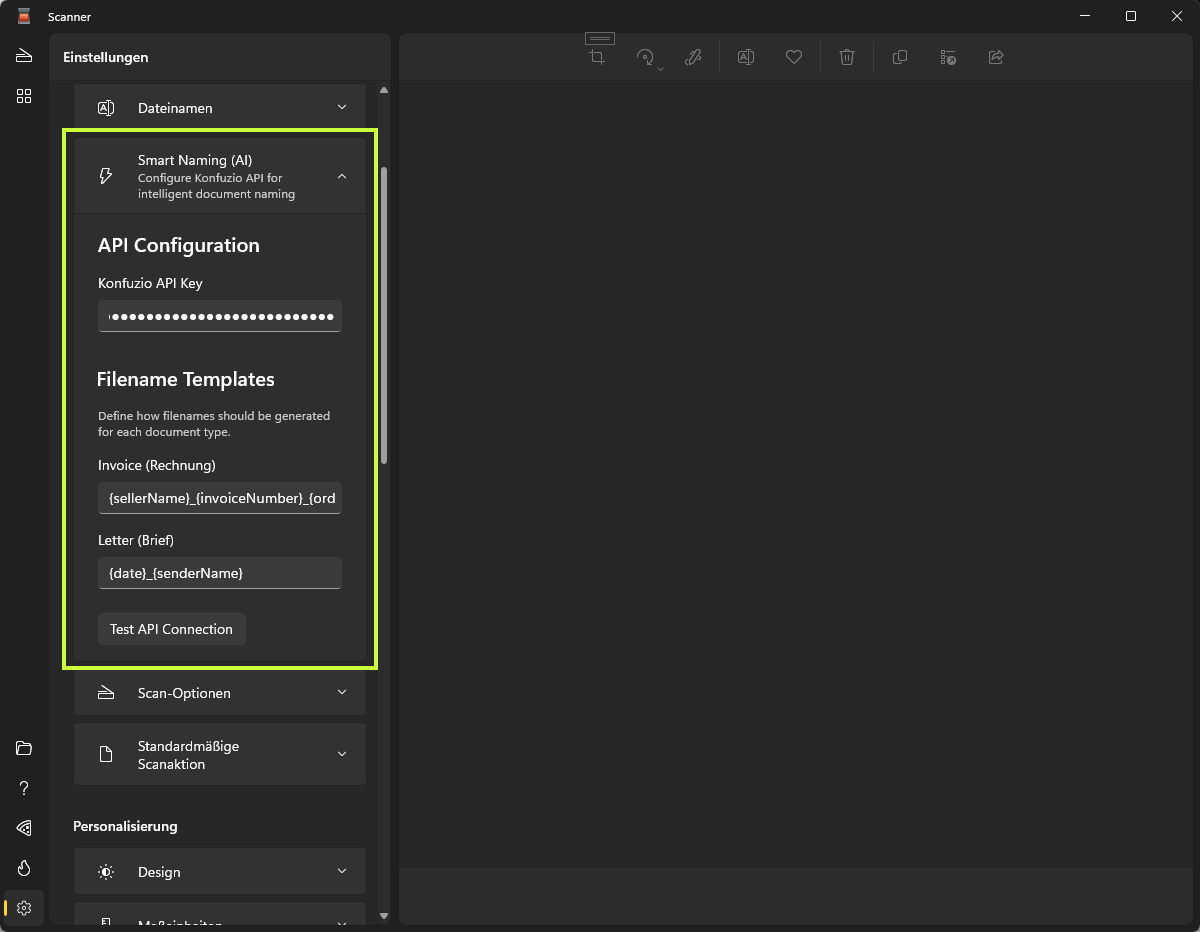
The fully automated workflow begins with the usual scanning process. The document lands in the monitored hotfolder. The AI analysis takes place fully automatically within a few seconds with Document AI. The document type is classified, all relevant data is extracted and a plausibility check is carried out. This is followed by intelligent naming according to a defined schema and automatic filing in the correct folder structure. Data is exported in various formats - CSV for Excel, JSON for APIs or DATEV format for direct transfer to accounting (more on the DATEV integration). Unsafe detections are marked for manual checking.
Integration with existing scanner hardware is seamless. With the watched folder method, your Brother ControlCenter software continues to save to a local folder while the AI software monitors it in the background. From the user's perspective, nothing changes in the scanning process. With API integration, business scanners and multifunction devices send documents directly to the processing API via HTTP mail. With the TWAIN direct connection, the AI software accesses the scanner directly and offers an optimized scanning interface. More about API integration.
A medium-sized tax consultancy firm can realize considerable time savings with this approach. Just like the digital law firm shows, the role of employees shifts from data collector to auditor and decision-maker. The freed-up capacity is available for advisory activities or client acquisition.
Optimal scanner configuration: Technical best practices
Regardless of the automation level selected, optimized scanner settings significantly improve processing quality.
A resolution of 300 dpi is recommended for standard business documents such as invoices and delivery bills. Higher resolutions do not bring any advantages for normal text, but unnecessarily enlarge the files. The color mode should be set to black and white or grayscale for pure text. Activate duplex scanning for potentially double-sided documents, automatic removal of blank pages, alignment correction for skewed documents and automatic size detection.
Documents with small fonts or complex tables benefit from 400 dpi resolution and the grayscale mode, which preserves more details than pure black and white. Slightly increased contrast and reduced brightness for pale originals further improve the result.
You can scan color documents at 300 dpi in color mode with medium compression. For archiving, PDF is a suitable standard format for daily use. For long-term archiving, you should use PDF/A in accordance with ISO 19005 for GoBD-compliant and unchangeable archiving.
These settings are similar for Brother, Canon, Kyocera and most other business scanners.
Realistic expectations of AI document processing
Standard business documents such as invoices, delivery bills, order confirmations and contracts are reliably processed by modern AI systems. Accuracy increases further for known suppliers from whom the system has already seen several documents. Modern printed text in standard quality is recognized almost error-free. Tables and structured forms are read reliably. Multilingual documents are no problem. More on the technical basics in our article on OCR with AI.
Challenges can arise with handwritten notes or completed forms, the recognition quality of which depends heavily on the font quality. Very individual or unusual document layouts require initial training with several sample documents. In the case of severely degraded document quality, such as faxes that have been copied several times, heavily creased documents or faded thermal prints, manual reworking may be necessary. The right scanner configuration can help here.
Technical and context-based business decisions remain with humans. For example, AI cannot automatically know which project an invoice should be assigned to if this information is not explicitly stated in the document. Nor can it replace the factual examination of whether a contract is advantageous or an invoice appears plausible. The role of the human being shifts from data collector to verifier and decision-maker. More on this in our article on Human-in-the-loop.
Which level of automation suits your company?
Choosing the right level of automation depends on several factors. A structured hotfolder is suitable for companies with limited document volumes, small teams with clear responsibilities, limited IT resources or as a pilot phase for Process optimization before a major investment. This solution requires no additional costs and uses the existing scanner software.
OCR software is ideal for mixed document quality, when a searchable archive is required for compliance, when several employees need to access documents or when initial automation steps without AI complexity are desired.
AI automation makes sense when structured data needs to be transferred to third-party systems such as DATEV, ERP or CRM, personnel capacities are scarce or expensive, errors in manual data entry need to be minimized, compliance requirements demand complete documentation or scaling is planned for growing document volumes. You can find further examples of success in our RPA success stories.
Legal requirements and compliance
The legal framework must be observed when digitizing document processes. The principles for the proper management and storage of books, records and documents in electronic form require archived documents to be unalterable, complete and traceable, changes to be logged and protection against loss. Automated systems should document when documents were received, who processed them and what changes were made. More details in our article on audit-proof archiving.
Documents containing personal data such as personnel documents, applications or patient files are subject to special protection obligations. These include purpose limitation of data processing, technical and organizational measures, order processing contracts for cloud solutions and, in sensitive sectors, the consideration of On-premise solutions. For law firms, tax consultants or healthcare facilities, there are special variants where data does not leave your own server. More about AI and data protection.
Business documents are subject to statutory retention periods. Modern Document management systems can automatically manage retention periods, submit documents for review after expiry, perform automatic deletion after approval and provide audit trails for compliance evidence.
From theory to practice: implementation in three phases
In the first phase, document your current process precisely. Record which document types are processed, how many documents are generated per week, how much time is currently required, which systems are in use and where the biggest pain points are. Then start with a focused pilot project, ideally with a single document type such as incoming invoices. Set up a structured hotfolder, test for two weeks with real documents and systematically collect feedback from the team.
In the second phase, expand to other document types and evaluate whether OCR software or AI automation makes sense. Obtain quotes, test with your own documents and define clear success criteria. Create a Business Case for ROI calculation.
The third phase involves rolling out the final solution to the entire team, training all employees involved, clear process documentation and regular reviews. In the case of AI systems, there is continuous follow-up training with new document variants.
Frequently asked questions about document automation
The integration basically works with any scanner that supports scan-to-folder or scan-to-network, offers PDF output and delivers a resolution of at least 200 dpi. The scanner software plays a subordinate role. Even older Brother, Canon or Fujitsu scanners from the last ten years are generally suitable.
Modern AI systems can subsequently process documents that have already been digitized. You can have a large folder of existing PDFs processed overnight. The AI subsequently extracts all the data and creates a searchable database. Find out more in our article on Digitize files.
Setting up a structured hotfolder takes a few hours for setup and team briefing. OCR software requires one to two days for installation, configuration and testing. AI automation takes one to two weeks for integration, training and optimization. The longer set-up time for AI is mainly due to the initial training with your specific documents and suppliers.
Reputable providers for Document automation offer ISO 27001-certified data centers in Germany or the EU, end-to-end encryption, GDPR-compliant order processing, regular penetration tests and certified erasure concepts. For the highest security requirements in law firms or the healthcare sector, there are on-premise versions where all data remains on your own server.
Summary: Your path to efficient document processing
The digitization and automation of document processes is not an all-or-nothing project. Even simple measures such as a structured hotfolder with your existing scanner software bring measurable improvements in workflow and clarity.
Modern AI systems for intelligent document processing offer significant efficiency gains, especially when large volumes of structured data need to be processed. The right solution depends on your specific document volume, existing systems and automation needs. A staggered approach - starting with simple structures, then gradually expanding - has proven successful in practice.
For more information on intelligent document processing with AI, visit konfuzio.com or read more in our Blog.

 EN
EN  DE
DE  ES
ES  FR
FR